
™℠®© Trademark TM Symbol
Copy and paste Trademark ™ (also called trade mark) tm symbol, ® Registered Trademark and ℠ Service Mark (servicemark) text signs from here. You can also learn to type trademark and registered symbols right from your keyboard below.
Meaning of tm symbol ™, ® and ℠

- ℠ SM symbol stands for service mark, a mark used to promote or brand services, typically unregistered.
- ™ TM symbol stands for unregistered trademark, that is, a mark used to promote or brand goods;
- ® R circled symbol stands for registered trademark. The owner of a registered trademark may commence legal proceedings for trademark infringement to prevent unauthorized use of that trademark. However, registration is not required. The owner of a common law "TM" trademark may also file suit, but an unregistered mark may be protectable only within the geographical area within which it has been used or in geographical areas into which it may be reasonably expected to expand.
- ㋏ ltd symbol stands for limited liability company. I know you don't need it, but I've put it here anyway.
How to input trademark TM symbol
Choose your platform and read a guide.
WindowsTM symbol on Keyboard
Alt Code for tm symbol
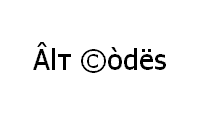
Shortcut technique that works on Desktops and most Laptops running MS Windows. You press Alt and, while holding it, type a code on Num Pad while it's turned on. Please, watch my guide if you're running a laptop. You can type many frequently used symbols with this method.
| Alt code | Symbol |
|---|---|
| 0153 | ™ |
| 0174 | ® |
Shift States
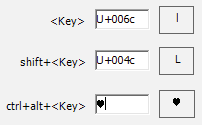
Configure your keyboard layout in Windows so that you can type all additional symbols you want as easy as any other text. Takes about 5-10 minutes to set things up, but you'll be typing like a boss. For example, you can assign trademark symbols to be something like AltGr (right alt key) + T, AltGr + R and AltGr + S.
Character Map
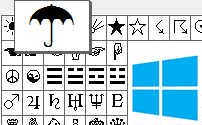
CharMap allows you to view and use all characters and symbols available in all fonts (some examples of fonts are "Arial", "Times New Roman", "Webdings") installed on your computer. You can input all symbols using it.
TM trademark sign on iPhone
On an iPhone you only need to type "tm" and hit a spacebar to get the trademark symbol. (r) produces a registered trademark symbol ®. Type (p) and hit a spacebar to get produced sign ℗ - also known as sound recording copyright symbol.
TM symbol in Keyboard viewer
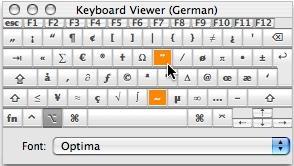
You can make frequently used technical non-fancy symbols including trademark, registered and copyright symbols, aswell as åccénted letters on Mac using [Option] key. I've compiled a list of shortcuts in my article and explained how to open keyboard viewer. You can also use your Keyboard Viewer as an alternative to my list.
[Option] + [2] produces ™ trademark sign and [Option] + [R] produces ® registered trademark sign.
Character Palette
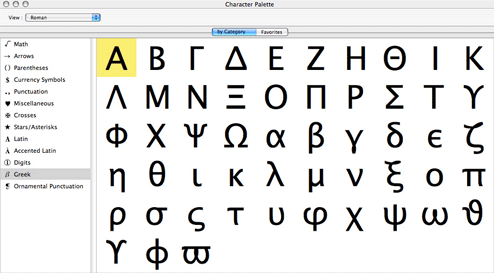
Character Palette allows you to view and use all characters and symbols, including trademark, available in all fonts (some examples of fonts are "Arial", "Times New Roman", "Webdings") installed on your computer.
TM From Keyboard

| Unicode hex code | Symbol | Compose key sequence | Symbol |
|---|---|---|---|
| 2122 | ™ | tm | ™ |
| 00ae | ® | or | ® |
There actually are 3 different ways to type symbols on GNU/Linux with a keyboard. And all of them can produce trademark symbol tm.
Character map
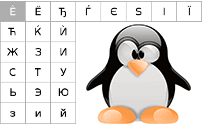
Character map allows you to view and use all characters and symbols available in all fonts (some examples of fonts are "Arial", "Times New Roman", "Webdings") installed on your computer. It can also help you lookup Unicode codes for entering symbols with keyboard.
Following is a list of HTML and JavaScript entities for trademarks. In JavaScript, you should write like a = "this \u2669 symbol" if you want to include a special symbol in a string.
| HTML entity | JS entity | Symbol |
|---|---|---|
| ™ | \u2122 | ™ |
| ® | \u00ae | ® |
| ℠ | \u2120 | ℠ |
Comments